Faces
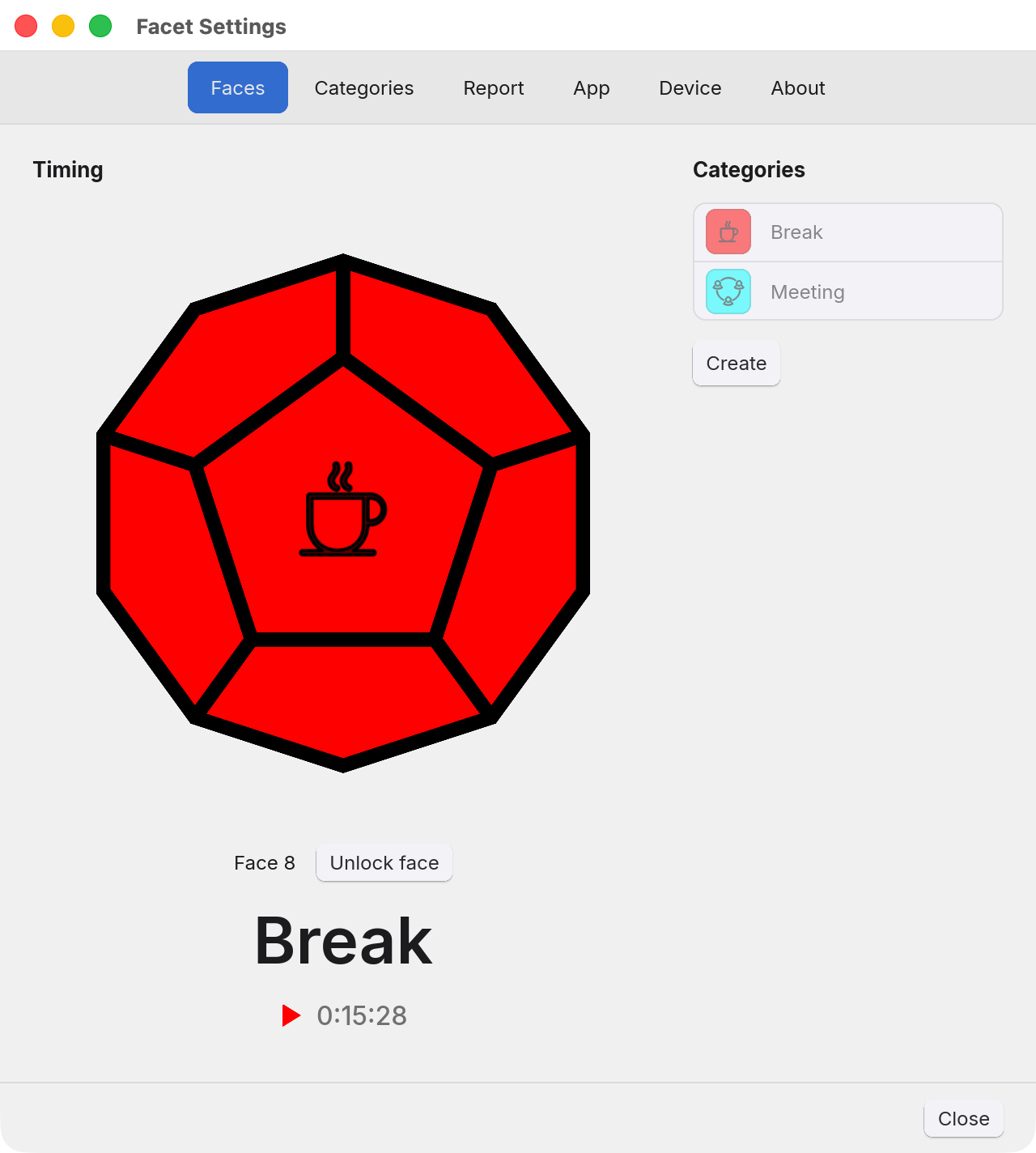
The face the device is resting on now, what it is timing, and the categories you can point a face at.
A face does not hold your time, it points at the category that does (the General information page is the long version of why that matters). The Timing column on the left shows what the device is doing now. The Categories list on the right is every active category, and it is what you assign from.
The Timing column
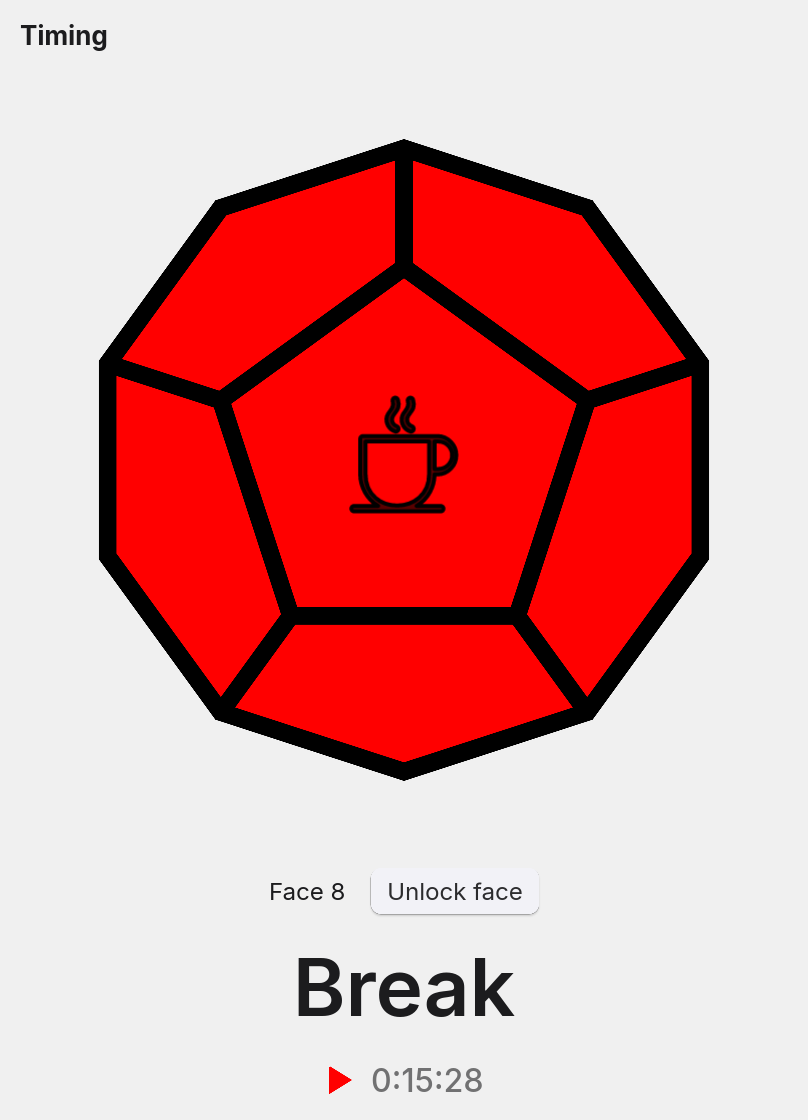
While a device is connected, the column is a picture of the device, lit in the colour of the category the face it is resting on points at, with that category's icon on its centre face. A face with no category is drawn white. Under the picture are the face number and the lock button, the category's name, and a play or pause symbol beside the current day's total for that category, always to the second.
What you can do here
- Create a category. Create, under the list. Type the name and press Return to save, or Escape to cancel. Names are cut at 35 characters. If an active category already has the name, Facet says so and makes nothing. If exactly one inactive category has it, Facet asks whether to reactivate that one or create a new one, and when more than one inactive category has it, only creating a new one is offered. A new category is put to use at once: with no device its clock starts, and with a device it goes onto the face the device is resting on, unless that face is locked. Its colour, icon and daily limit are on the Categories tab.
- Assign a category to a face. Turn the device to the face you want, then click the category in the list. That face points at it from then on, and Facet lights the face on the device in the category's colour. Nothing is typed, so nothing can collide with a name that already exists, and there is no per-face name to keep in step with anything. The device is the clock, so assigning does not start a new one: whatever is running on that face carries on, and is filed under the category the face holds when it ends. The list is greyed out and does nothing while the device's face is not known or that face is locked. Facet holds the device stopped while it rests on a face with no category, and assigning one lets it run again.
- Lock the face, with the Lock face button beside the face
number, so that a face you always want on the device keeps the category it has. The button
appears while a device is connected and acts on the face the device is resting on. While that
face is locked, the whole Categories list on this tab is greyed out, so a stray click cannot
reassign it, and on the Categories tab that category's tick box and daily limit are greyed out
and its name, icon and colour stop responding. It cannot be made inactive, renamed, recoloured,
given another icon or given a different daily limit until you press Unlock face.
A new database starts with face 2 (Meeting) and face 8 (Break) locked and the rest unlocked.


Unlocked, and locked.
Twelve faces, as many activities as you like
Because a face is a pointer, the twelve faces are not a limit on how many things you can track, only on how many are within reach at once. Taking a finished one out of circulation and bringing it back later are both on the Categories page.
One activity can sit on several faces. Totals and daily limits are counted per category, so forty minutes on one face and forty on another are eighty minutes against the limit and the total, rather than two lots of forty.
With no device paired
The tab has a second arrangement, and this is the one you get before your device arrives. The Timing column is empty until you click a category. Then it becomes a play or pause symbol in the category's colour with the day's total under it and the category's name below, and clicking a category in the list starts the clock on it. With a device, the same click assigns a category to a face and starts nothing, so the list means something different in the two arrangements. The time recorded goes to the same place a device's time goes, and the Report tab cannot tell the difference.
Pair a device later and it takes over from that moment, with no restart and nothing to migrate.
A device you own but do not have with you. When Facet starts and cannot find the device it is paired to, a notice over the Settings window says so and gives you three options. Until you choose, the Categories list on this tab and Pause in the menu are greyed out. Return or Escape takes Rescan.
- Rescan looks again. Nothing found, and the same question comes back, as many times as you care to ask it.
- Time by Hand gets on without it. The tab becomes the arrangement above and a click starts a clock, straight away.
- Quit closes Facet, deciding nothing.
Time by Hand does not unpair your device. It stays on record with its settings, and the Device tab still shows it, reading Disconnected. What it does mean is that Facet stops looking for it until you start the app again: a device in a bag in the next room that drifted into range would otherwise take the clock back part-way through what you were timing. So when you are back with it, quit and start Facet, and it opens the device as usual.
The question is asked only when Facet starts. If the connection drops while Facet is running, it keeps looking in the background and the status icon turns yellow, without asking anything.
Anything else
Questions and faults: facet@tux.com.au.