Report
What the recorded time adds up to.
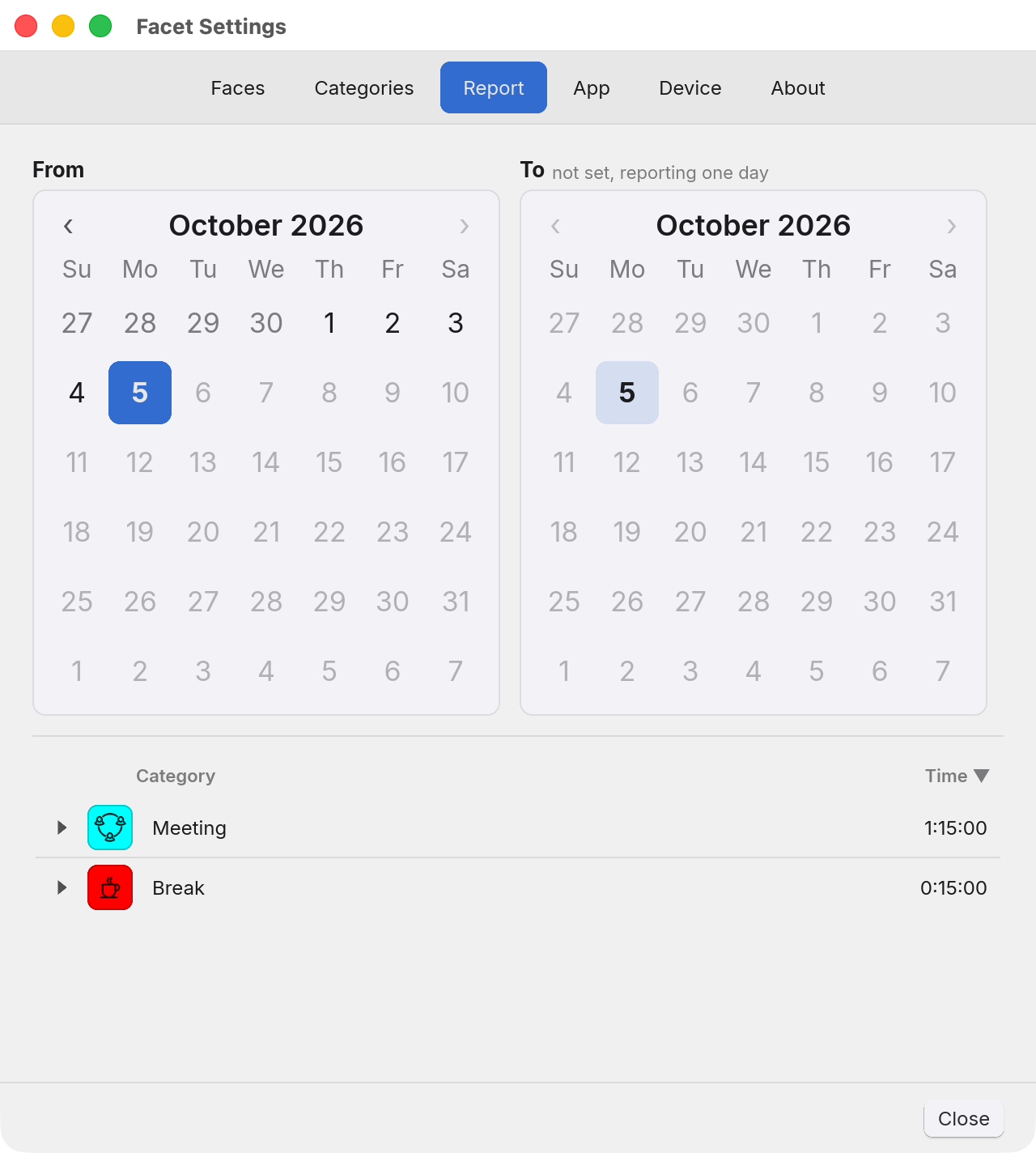
A pair of calendars across the top and the answer underneath. The range is a question you are asking rather than a setting you are saving: nothing is written, and the tab opens on today again next time.
Picking the range
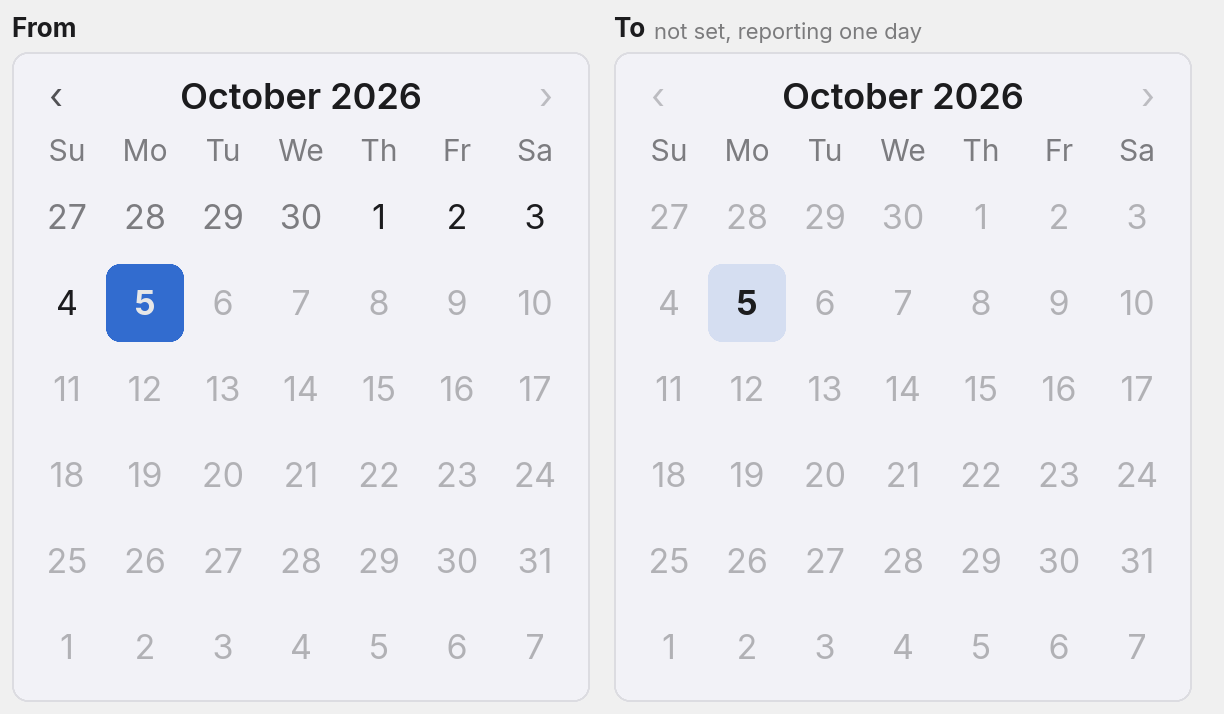
The From calendar picks the first day of the range and the To calendar the last, and weeks start on Sunday on both. To starts unset, which reads not set, reporting one day beside its title, and the report then covers the From day alone. To cannot be earlier than From, and picking a From later than To pulls To forward to it. You cannot pick a day in the future: this is a time recorder rather than a planner, and a report on next Tuesday could only ever say nothing was tracked.
A day starts at your reset time, not at midnight
The range is measured in Facet's own days. A day runs from your daily reset time, 3 AM until you change it on the App tab, to the same time the next day. So 5 August to 7 August means 5 August at 3 AM up to 8 August at 3 AM, and a report on a single day shows the same figure the Faces tab gave for that day. Before the reset hour, today is still the previous date, so the tab opens on that date and the current one is greyed out.
That is the point of not cutting at midnight: an evening that runs past twelve stays on the day it started, on this tab as everywhere else in Facet.
What the totals say
Under the hairline is one row per category that recorded something in the range: its icon on its colour, its name, and its figure at the right-hand end. A category with nothing in the range is absent rather than listed as 0:00, since the question is where the time went and a page of zeroes buries the answer. A range with nothing in it says so in words instead of drawing an empty table. Categories you have retired still appear with their time, and a renamed category shows its new name for its old time.

Unassigned appears here, and nowhere else in the app, when time was recorded on a face with no category of its own. Facet stops the device while it rests on such a face, so it is normally a few seconds at most, but it was time you spent, and leaving it out would give you a report that quietly fails to add up to the day.
Sorting
The list opens sorted by Time, largest first. Click either heading to sort by that column, and click it again to reverse the order. An arrow beside a heading shows which column is sorting and which way; clicking Category starts at A to Z, and clicking Time starts at largest first.
The sessions behind a total
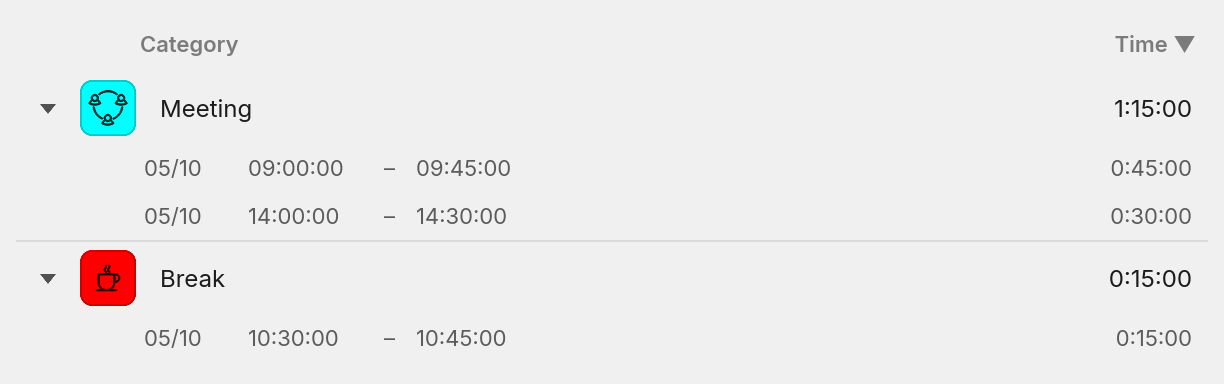
Every category starts closed. The totals are the answer to the range and the sessions are the working, and nobody wants a dozen categories' working on screen at once. Click anywhere along the row to open it.
Each line under it is the day as dd/MM, the time that session started, the time it ended, and how long it ran. The clock is 24-hour and the format is fixed rather than your machine's, which is what keeps the columns the same width all the way down so the figures can be compared by eye. The date is the calendar date the session started on, so a session between midnight and the reset hour shows the next calendar date although it belongs to the previous Facet day.
A session that spans the daily reset
Sessions are cut only at the two ends of the range you pick. A session that began before the range starts, or that ran on past its end, contributes only the part falling inside it, and the times on its line are the clipped ones rather than the ones it really ran between.
A one-day report ends at the daily reset, so a session that spans the reset is split there: the time before it counts towards the day that is ending and the time after it towards the day that is beginning, even though you timed it as one unbroken session. A range covering both days shows it once, whole. Two reports covering neighbouring days therefore split such a session between them, and neither claims all of it.
A clock still running is not in the report yet
A report counts finished sessions. Time is written down when a session ends, so whatever is being timed at this moment shows on the Faces tab and in the status icon's tooltip, and joins the report once it has ended and been recorded. Pause the clock, or turn the device to another face, and it turns up. A Report tab that is open redraws by itself when a session is recorded, so there is no need to open it again.
Anything else
Questions and faults: facet@tux.com.au.